For poor hearing or poor eyesight
The companion screen has choices for a person who hears or sees poorly. The person changes them in Settings on the screen, or the helper does. A change applies at once.
If the person sees poorly
- Text comes in three sizes: medium, large and largest. The largest is one and a half times the size of medium.
- The colours are light text on a dark background, or dark text on a light one. Both are made for strong contrast. At night the screen uses its own dim, dark colours.
- Buttons are large, at least 64 pixels tall, with a plain word on each. For the person, every button is one press: nothing needs a hold, a swipe or a double tap.
- Each question is read aloud, and so is each change made in Settings. A large button, Say it again, repeats the last question.
- The speaking speed can be slow, medium or fast. The volume can be changed, and the voice can be switched off.
- If the person uses a screen reader, the helper can say so. The screen then stays silent, so that the screen reader can read it.
If the person hears poorly
- The questions, the check "Are you all right?" and each call are shown in large writing as well as spoken.
- At setup, the screen speaks a sample and asks whether it was heard. If it was not, the helper can choose another voice or continue with words only.
- When a call comes in, the screen flashes softly and shows a steady banner with the caller's name. A photo of the caller shows too, if the caller added one. Where the device can vibrate, it does.
- The same flash and banner show when the screen asks "Are you all right?". The flash can be switched off in Settings; the banner stays.
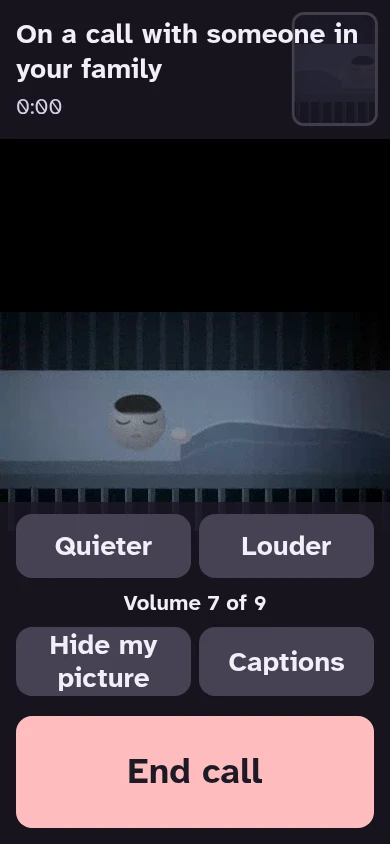
- The volume has its own setting. During a call, large Louder and Quieter buttons change it.
- A call has a Captions button. It shows short steps to switch on the device's own live captions. The device writes out what the other side says, nothing is sent to MeiMei, and not every device has the feature.
- The call controls stay out of the lower part of the screen, where the device shows its captions.
The person decides
The companion screen belongs to the person it sits with. There are two ways to set it up. With “Set it up myself”, nothing on it is switched on until that person, or someone they have asked to decide for them, says yes on the screen itself. With “Start with the recommended settings”, the screen listens from the hand-over, says so aloud, and the person is asked within a day. Who answered is recorded on the screen; it is not verified.
- The screen asks aloud and in writing, with a large Yes and a large No.
- A no is accepted without pressure: that item stays off, or is switched off at once.
- Telegram chats, the quiet morning check and connecting without an answer always wait for that yes. So do family members, unless the helper chose the recommended settings: then the family devices paired at the hand-over are told from then on. A device paired later waits for the yes.
What it notices, and what it does not
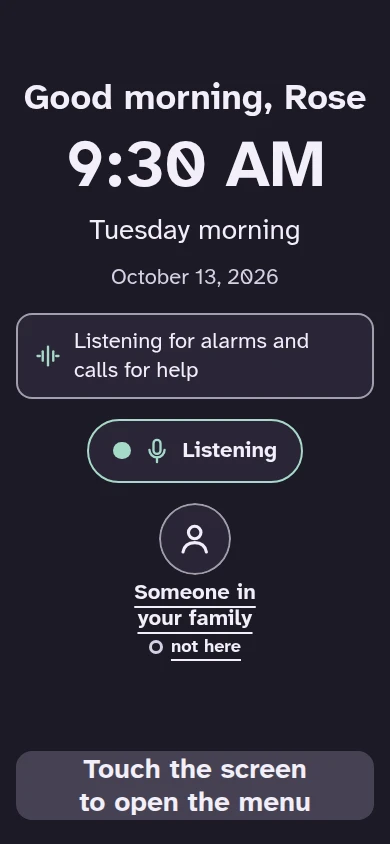
Once the person has said yes, or from the hand-over when the helper chose the recommended settings, the screen listens for a smoke alarm, a call for help and a few other loud sounds, and it notices a long silence. The sound is analysed on the screen and thrown away; nothing is recorded.
- It cannot tell how someone feels.
- It can miss things, and a message can arrive late or not at all.
- It is no substitute for checking in person.
The spoken agreement
Set up step by step, the screen speaks and shows one plain question before anything listens, and waits for the answer. With the recommended settings it says aloud what is already on, shows it until the person has answered, and asks the same questions within a day. The person can change their mind at any time.
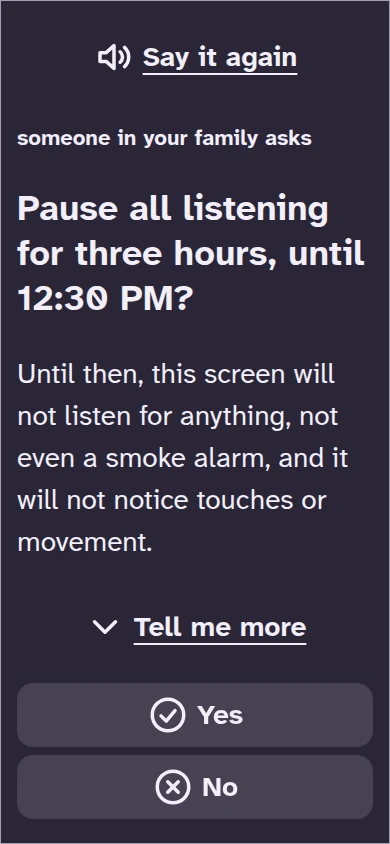
- Pausing is as easy as agreeing: one press on the screen.
- A pause stops all listening, a smoke alarm included.
- While it is paused, nothing is listened for and no alert is sent.
Who is told
The family members the person has agreed to are told in text, never with sound or pictures. With the recommended settings, the paired family devices are told from the hand-over, before the person has answered, and their screens show that it is not yet confirmed. They learn that the person was up today, never when.
- The person ends an alert by pressing "I'm fine" on the screen. That includes a smoke alarm alert.
- With MeiMei Away, an alert that nobody answers rings a phone once. The call rings and says nothing, like a missed call.
- When the screen has been closed, it sends one short notice with nothing from the home in it.
Calls
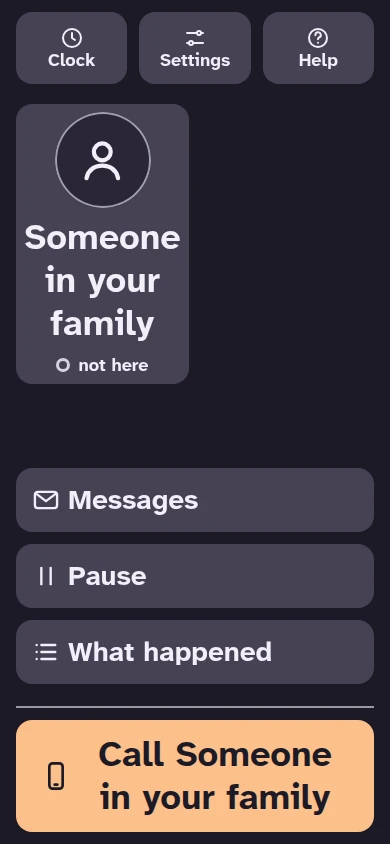
The person calls the family with one large button. A call reaches a family member as a notification.
- Video calls start only with the person's agreement.
- Picture and sound are shared only during a call that the person answers or has agreed to beforehand, directly between the two devices, and nothing is recorded.
The family's side
A family member uses MeiMei on their own phone, tablet or computer. The person’s screen tells them only what the person has agreed to; with the recommended settings, also what has been on since setup, marked as not yet confirmed.
Joining, and waiting for the yes
- The helper shows a code on the person's screen. The family member points the camera of a phone or tablet at it, or opens its link on a computer.
- The helper gives each family device a short name that the person knows. A family member can also add a small photo, which goes only to the screens they call, so that the person sees who is calling.
- When the screen was set up step by step, the new device then waits. Until the person says yes on the screen, it is told nothing and cannot call. With the recommended settings, a device paired before the hand-over is told as “on since setup, not confirmed”, if its MeiMei is up to date. A device paired after the hand-over waits for the yes like any other, and so does an older MeiMei.
- If the person says no, the device stays that way. The family member can remove it from the list, or ask again later.
An alert
- An alert is text only. Its title names the person and what the screen noticed, and its text says to call the person.
- With MeiMei open, the alert fills the screen. With MeiMei closed, it arrives as a notification if the family member has signed in with a free account and switched on alerts for that browser, or as a Telegram message if the family has set that up.
- The family member can answer "I'm going" or press Call. The person's screen then shows that they are coming.
- There is no button to look in or listen. A call is the only way, and the person has a say in it.
- Alerts for a smoke alarm and alerts that need attention cannot be snoozed, and they come through the family member's quiet hours.
- A notice is a quieter message, for example that the person paused listening or that a setting changed. It arrives as one calm message with no sound, and it follows the quiet hours.
When the person is fine
- The person ends an alert on the screen with "I'm fine". Every family member who was told then sees a notice that the person says they are fine, and the alert on their device stops.
- No phone ring is made after that, or after a family member says "I'm going".
- If the person answers "I'm fine" to the question "Are you all right?" before the countdown ends, the family is not told.
Up today
- If the person has agreed to the morning check, the family's list shows "Up today" or "Not up yet today" after the person's usual getting-up time.
- It is a yes or a no. It never shows a time, and nothing else about the person's day.
A call from the person
- The person presses the large Call button to ring the family, or chooses one family member to call. Only the family members the screen tells are rung: those the person agreed to and, with the recommended settings, the paired family devices until the person has answered.
- On a family device, the call shows who is calling, with the buttons Answer and Not now. With MeiMei closed, it arrives as a notification with the same two buttons, if the family member has signed in with a free account and switched on alerts for that browser.
- When one family member answers, the other devices stop ringing.
- In the call, the family member sees the person and can mute the microphone, switch camera, turn on captions and end the call. The person can hide their own picture and still be heard. A call ends after two hours.
- If nobody answers, the screen tells the person that the family will see the call. The family sees a missed call in their list, with a button to call back.
- A family member can also call the person. The person answers, or presses Not now.
The silent ring with MeiMei Away
- With MeiMei Away, a family member can set their own phone number in Settings, under Phone-call alerts. This needs an account.
- When an alert goes unanswered, MeiMei rings that number once for that alert and says nothing, like a missed call. The family member then opens MeiMei to see what happened.
- A smoke alarm rings at once. Other alerts that need attention ring after about 30 seconds. There are at most 6 rings a day for each screen, and notices never ring.
- Only the family members the screen tells can be rung: those the person agreed to and, with the recommended settings, the family devices that were paired at the hand-over, until the person has answered.
Seeing what was agreed, and leaving
- The Agreed list shows what the person agreed to and who answered: the person, or someone who may decide for them.
- A family member can remove their own device at any time. The screen tells the person that this device was removed.
What a family member cannot do
- Look or listen on their own. Picture and sound are shared only in a two-way call. The person answers it, or has agreed beforehand that this family member may connect without an answer.
- That agreement is off until the person says yes to it. Even then the screen sounds a chime, speaks, and counts down five seconds with a large Stop button before any picture or sound.
- Change what the screen listens for. A family member can only ask, for example to pause listening for an hour. Nothing changes until the person says yes on the screen.
- See the person's day. They see only what the screen told them, and "Up today" as a yes or a no.
- Play anything back. Nothing is recorded.
Privacy
Sound is analysed on the screen itself and thrown away. Only words leave it, as text alerts to the people the person agreed to.
- What the screen noticed about a person stays on the screen for 14 days or 500 events, whichever is smaller.
- The record of what was asked and answered stays with the home until the home is deleted.
- No analytics, no advertising and no recordings.
Setting it up
Set it up once, on the device that will stay with the person.
- Open the companion screen on that phone or tablet, and tap “Start with the recommended settings”, or “Set it up myself” to go step by step. Adding it to the Home Screen is optional.
- Keep the device plugged in, its screen on and the page open.
- Pick a voice in the person's language; the setup shows how to add one if the device lacks it.
- Add the family members who should be told. Set up step by step, they wait for the person’s yes; with the recommended settings, the ones paired before the hand-over are told from then on, and a family member added later waits for the person’s yes.
The helper
The helper is whoever sets the screen up and looks after it, often a family member. The helper works on the device that stays with the person. The person then decides what the screen does.
Setting up
- The helper allows the camera and the microphone, adds the family devices and may set a screen lock.
- The helper enters the person's name and, if wanted, the usual getting-up time. The helper also gives each family device a short name, and picks the language and a voice.
- With “Set it up myself”, a checklist shows what is still to do. The screen cannot be handed over until the name, a family device and the camera and microphone are done. With the recommended settings, only these three are needed.
- The helper then gives the screen to the person. Set up step by step, the screen then asks the person for each permission, aloud and in writing, and nothing is switched on without a yes. With the recommended settings the screen is on from that moment: it says aloud what it listens for, shows it until the person has answered, and asks the person within a day.
The helper's PIN
- The helper may set a PIN of 4 to 8 digits. It is recommended, not required, and it can be set later.
- The helper opens the helper's settings with the small Helper button in the menu, or by holding both top corners of the screen for three seconds. With a PIN set, the settings open only after the PIN is typed.
- After five wrong tries, the PIN pad locks for a while.
- The settings close by themselves, and the screen returns to the person, after 5 minutes without a touch.
What the helper can change afterwards
- Add a family device with a pairing code. When the screen was set up step by step, it waits for the person’s yes like any other. So does a device paired after the hand-over with the recommended settings.
- Remove a family device. It then gets no alerts or calls, and must pair again to come back.
- Change the person's name, the language and the comfort settings: text size, colours, speaking speed, volume, voice and flashing light.
- Set the person's usual getting-up time. This asks the person whether the screen may check on a quiet morning, and nothing changes before the yes.
- Choose who answers the questions on the screen: the person, or someone who may decide for them. The choice is recorded.
- Choose how long the screen waits for an answer to "Are you all right?": one, two or three minutes.
- Reset the screen's listening to the choices the person agreed to, if it has been adjusted since.
- Set the screen up again, which asks the person every question again, or remove the device.
What the helper cannot do
- Switch anything on for the person after the hand-over. The helper’s settings say it plainly: nothing there changes what is noticed or sent unless the person says yes. The recommended settings chosen at setup are the one exception, and the person is asked about them within a day.
- Have a family device told anything before the person says yes, unless the helper chose the recommended settings at setup. Then the devices paired at the hand-over are told, and the screen says so. A device paired afterwards is not.
Plans
The companion screen uses the same account and plans as MeiMei. Text alerts and calls work on every plan. A plan adds reach, more devices and more days kept. A free account can try MeiMei Home or MeiMei Away once, free for 7 days.
Free
- One family device and one screen. Nothing to sign up for.
- Text alerts and calls reach the family device while MeiMei is open on it. Telegram can carry the text alerts to a chat of the family's own.
- Calls work on the same Wi-Fi. From outside the home, a call may not connect on some mobile networks, and the app then says why.
Free account
- Everything in Free.
- Alerts and calls reach the family device as notifications when MeiMei is closed.
- Still one family device and one screen.
MeiMei Home
- Everything in the free account.
- Up to 3 family devices and 2 screens in all. A companion screen and a room's monitor unit each count as one. Add up to 3 extra devices of any type for €2.49 a month each.
- A family device keeps its own copy of the list of what the screen told it, for up to 14 days.
- The interactions summary: a PDF of what the screen told a family device in the last 14 days, day by day, made on that device and shared only where the family sends it.
MeiMei Away
- Everything in MeiMei Home.
- The silent phone ring: MeiMei rings a family member's phone when an alert goes unanswered.
- Calls from outside the home go through MeiMei's relay, which helps where a network would not connect them. Picture and sound stay encrypted between the two devices.
- One family device at a time can be on a call from outside the home; each extra device adds one more.
See the plans and their prices
Limits, and the safety line
Please read this before you rely on the screen.
- It monitors only while the page is open and the screen is on.
- It cannot tell when a person falls. Suggest a watch with fall detection to anyone who needs one.
- Voices depend on the device.
- The low-battery notice works only in Chrome and Edge.
This screen is not an emergency alarm. It can miss things, and a message can arrive late or not at all. In an emergency, call your emergency number.
Read the privacy policy